Translate

Mostrando entradas con la etiqueta webservices. Mostrar todas las entradas

lunes, 9 de febrero de 2015

WSO2: add log4j traces for your service

When you are using WSO2 application server to create your web services, you may want to log debug traces in your web services, but by default the log4j WSO2 configuration doesn't show this kind of debug traces.

In order to show this debug messages you only need to consider your webservice implementation package and add it to log4j WSO2 configuration.

Imagine that your application or webservice package is com.antuansoft.myapp you have to add this lines:

#MY APP DEBUG TRACES:
log4j.logger.com.antuansoft.myapp=DEBUG


at the end of the log4j.properties file that is situated in the next path:

[WSO2-Intallation-path]/repository/conf/log4j.properties

miércoles, 4 de febrero de 2015

Webservice Example with axis2 part 4: How to create the web service using maven and the template class

This is the fourth post to show how to create a web service with a simple operation and a complex operation based on Axis2.

In this series of posts we are going to show this points:


  • Setting up the environtment
  • Understanding  a web service
  • How to define the web services operations in a template class
  • How to create the  web service using maven and the template class
  • How to package the web service using maven and deploy it.
  • How to test the deployed web service using maven.


In this post we are going to learn about how to use maven to create a WSDL file based on the template class created in the part 3 of these seral of posts. And after that based on the created WSDL we are going to create the basic architeture of the web service generating the server side stubs also with maven.

Note: You need to have medium knowledge of apache maven, especially with maven profiles and maven plugins.

With maven you can build the pom.xml but you can build a profile also, this profile contains a subset of tasks to be executed.

The maven plugin that we are going to use are:


  • maven-compiler-plugin: To compile the template class and all classed used by it.
  • axis2-java2wsdl-maven-plugin: To create the WSDL based on template class
  • axis2-wsdl2code-maven-plugin: To create the server side stubs based on the WSDL
  • maven-antrun-plugin: Move and rename the generated files.


To do this tasks we only need to modify the pom.xml adding to this profile the 4 plugins. Look at the pom.xml file from lines 290 to 413 and execute the next maven command.

mvn -P java2wsdl2code clean compile -e

-P parameter means that we are going to appy the java2wsdl2code.
- e parameter means more detailed message if an error happen.

The first part of the profile consists on compile the template class created in the step 3 of this tutorial series. It compile the class Axis2ServiceExample, and his related classes ComplexOperationResponse and Axis2ServiceException. Here I had added some configuration to use de compile plugin in the generate-sources phase and avoid the default phase of this plugin (compile phase)


The second plugin is one of the important plugins, axis2-java2wsdl-maven-plugin this plugin generates the WSDL file and service-xml based on the compiled classes by the last plugin. The input parameters are

  1. the main class to read Axis2ServiceExample
  2. the target name space for that webservice.
  3. The path and name of the WSDL where is going to be generated.
--
--

At this point in the target folder should be generated an Axis2ServiceExample.wsdl and a services.xml. Now we are going to generate the server Stubs based on this WSDL file. These server stubs are .class and .java files and all the generated classes will be the architecture of the web service. The databinding framework selected to create the architecture is XMLBEAMS the axis2-wsdl2code plugin provides the next posible framework options XMLBEANS, ADB, AXIOM and JIBX.

The input parameters applied to this plugin are:

  1. packageName: The package where the class files will be created,
  2. wsdlFile: Location of the WSDL file generated in the last step.
  3. databindingName: The Databinding framework selected
  4. outputDirectory: Directory where the source files will be created
  5. generateServerSide: True to generate server side stubs of the WSDL, false to generated clients of the WSDL.
  6. generateServerSideInterface
  7. generateServicesXml
  8. generateServicesXml: Specify the name space.

--
--
Besides the java classes and the source code, a build.xml file is generated it will be used in the next maven pluglin, it will help to package all the classes generated.


The last plugin aplied is the maven-antrun-plugin, is only a special plugin to apply ant sentences in a maven phase. The objetive of this step is only execute the build.xml file generated in the last step and move the files generated to the build directory.

--
--

To execute all of this actions yoy have to execute the next command:

mvn -P  java2wsdl2code clean compile 

We are going execute the clean and copile phases executing the java2wsdl2code  profile, and after maven execution the results are in the target directory.


You will find the source code generated in target/wsdl2java/src folder, the compiled classes in target/build folder and the generated artifacts in wsdl2java folder.

Now we have to copy

  1. The Axis2ServiceExample.wsdl and service.xml to the [ProjectHome]/src/main/resources. This files are needed to describe the web service created based on the template file
  2. The Axis2ServiceExampleServerStubs.jat and XBeans-packaged.jar to [ProjectHome]/lib foder. This files cotains all the classes generated based on the template file 
  3. Axis2ServiceExampleSkeleton.java to [ProjectHome]\src\main\java\com\antuansoft\services\template this file is  needed to add functionaly to the web service operations.

Now we are ready to codify, we will see in the next chapter.


viernes, 2 de enero de 2015

Webservice Example with axis2 part 3: How to define the web services operations in a template class

This is the third post to show how to create a web service with a simple operation and a complex operation based on Axis2.

In this series of posts we are going to show this points:


Now we are going to learn how to create a complete webservice based on a template class. This class is going to be a template with the name of the webservice, the operations (one simple, and one complex) and the input and output paramaters of each operation.

You can see in the picture the first steps that we need to create the webservice. To do this 

  1. Create a Java class (an abstract class) with the operations and specify:
    1. Operation name
    2. Operation input parameters 
    3. Operation output parameters 
We are going to create two operations, one simple operations with basic data types and a second operation with a complex data type in the input and output parameters.

The result is this class

--- Axis2ServiceExample.java

---


viernes, 28 de noviembre de 2014

Webservice Example with axis2 part 2: Understanding a webservice

This is the second post to show how to create a web service with a simple operation and a complex operation based on Axis2.

In this series of posts we are going to show this points:


Now we are going to learn how a webservice works and the main concepts.

The main part of a webservice is the WSDL file that describes the webservice interface. This interface describes the available operations in the webservice and the input and output parameters of all operations. This file will be the defined using a template java class and the java2wsld java tool that transform a java class in a WSDL file.

Another important concept of the webservice is the endpoint, the endpoint is an URL that you have to know in order to use the webservice. This endpoint is where the server are listening for your requests and where the server code are executed when a webservice operation is called. Finally an output is returned to the client in order to response to the request, this is the server part of the webservice.

The WSDL file is always public and you can access it via URL to see the available operations and mainly to build a client using the wsdl2code java tool that can create a collection of java classes based on a WSDL file in order to use the webservice. With this client you can invoke the available operation of the webservice, this is the client part of the webservice.

This comunication bettwen the client and the server part of the webservice is made by the soap protocol (Simple Object Access Protocol). 


Example:

We have the webservice named Axis2ServiceExample  with the next operation:

Name: simpleOperation
Input Parameters: number1: Integer, number2: Integer
Output Parameters: Integer - Return the add of the input numbers.

WSDL File: http://localhost:9763/services/Axis2ServiceExample?wsdl
endpoint:  http://localhost:9763/services/Axis2ServiceExample/

All of this things are defined in the WSDL file, in the next sections we will see how to the create all parts of the webservice and call to the operation.

References:


domingo, 9 de noviembre de 2014

Webservice Example with axis2 part1: Setting environtment

This is the first post to show how to create a web service with a simple operation and a complex operation based on Axis2.

In this series of posts we are going to show this points:

The first thing to do is set up the necesary environtment to create the web service. Download the next sofware and configure the environment variables:

•    Java SDK version 1.6.0_45 or later.
•    Windows environment variable JAVA_HOME pointing to Java location (C:\Program Files\Java\jdk1.6.0_45)
•    Eclipse IDE version 4.3 Kepler or later.
•    Apache Maven version 3.1.1 (Embedded in IDE or installed in local machine to use it in command line console).
•    Add the apache Maven bin directory path to the Windows environment variable Path
•    Apache Ant version 1.9.4, installed in your local machine.
•    Add the apache Ant bin directory path to the Windows environment variable Path
•    Apache axis2 version 1.6.0  (binary distribution). Libraries XMLBeans version 2.3.0 and axiom version 1.2.11 are included in axis2.
•    Windows environment variable AXIS2_HOME pointing to Axis2 location (C:\axis2-1.6.0)
•    WSO2 application server version 4.0.1 to deploy Web services.  (you have to download the version 5.0.0 in the download page)

The next step is check if all the elements are properly installed.

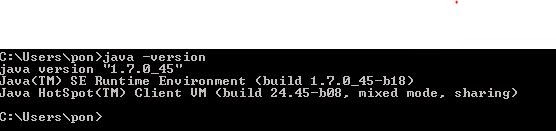
JAVA
Open a dos command window and execute java -version


ECLIPSE
Execute the eclipse.exe in your eclipse installation


APACHE MAVEN

Open a dos command window and execute mvn -version


ANT
Open a dos command window and execute ant -version


AXIS2
Open a dos command and execute echo %AXIS2_HOME% and check that path y correct.


WSO2 - Application Server
Open a dos windows and run the server using this command.
[WSO2-Installation-folder]/bin/wso2server.bat


Open browser and copy the url that appears in the last line of the output

Enter user admin and password admin


If you are here everything has going ok.